 安全软件
点击放大
GVM-Docker - Greenbone Vulnerability Managment software deploya
项目说明
!Netizen Logo
Visit our Website:
Greenbone Manager/Scanner
Latest : 26.7.0
!Docker Pulls
!GitHub
>[!CAUTION]
>PLEASE DO NOT CHANGE THE TIMEZONE INSIDE THE GREENBONE SECURITY MANAGER. There is a known issue with GSA when changing time zones, which causes a GMP authentication error. If you change your time zone, you will either need to modify the PostgreSQL database or stand up a new container/ and remove the old one.
The docker container is based on the latest of Greenbone Management and OpenVAS. Netizen continues to make impro to the software for the stability and functionality of the suite. This container supports AMD 64-bit and ARM 64-bit Linux-based operating systems and Docker Desktop for Windows using WSL 2. If upgrading from a previous of GVM 21.04.x or older, or PostgreSQL 13 or older, you must follow the PostgreSQL upgrade instructions. Taking a backup of your containers or continuing in case of data corruption during the upgrade is recommended.
A remote scanner can be found by our Open Github Repo.
Table of Contents
Installation Instructions
Docker System Installation (Linux AMD/ARM 64-bit Only)
1. Install the required packages, docker, and docker-compose on your Linux system.
2. Create a directory and download the docker-compose.yml file from GitHub. ${USER} is the username of the user(s).
3. Modify the docker-compose.yml file using your preferred editor (Nano or Vim).
4. Edit the yml file with your preferences. NOTE: Netizen is not responsible for any breach if the user fails to change the default username and passwords. Make sure to store your passwords in a secure password manager.
5. Next, it's time to stand up the docker image using docker-compose.
It will take time for the container to be ready as it compiles the NVTs, C, and SCAP data. To monitor this activity use the docker logs command.
6. After completing e, go to IP Address]/ to access the scanner. Use the credentials you provided in the yml file.
Docker System Installation (Windows WSL2 AMD 64-bit Only)
1. Install Docker Desktop for Windows and the required packages for docker, docker-compose, and WSL 2 on your Windows system. You can download the application at
2. Follow the usual installation instructions to install Docker Desktop. Depending on which of Windows you are using, Docker Desktop may prompt you to turn on WSL 2 during installation. Read the information displayed on the screen and turn on the WSL 2 feature to continue.
3. After installing Docker Desktop and before acti WSL2, you must create a .wslconfig file under your C:\Users\<Username>\ directory or modify the existing file with the text below. Please configure the file based on your system specs or .
4. Start Docker Desktop from the Windows Start menu.
5. Na to Settings.
6. From the General tab, select Use WSL 2 based engine..
7. If you ha Docker Desktop on a system that supports WSL 2, this option is turned on by default.
8. Select Apply & Restart.
9. Create a directory under your Documents folder and name it whatever you like.
10. Na to and download the docker-compose.yml raw file from GitHub. After downloading it, copy it into the directory you created in the Documents folder.
11. Next, you will modify the docker-compose.yml file using your preferred editor (NotePad, NotePad++, etc).
Edit and save the yml file with your preferences. NOTE: Netizen is not responsible for any breach if the user fails to change the default username and passwords. Make sure to store your passwords in a secure password manager.
12. It's time to stand up the docker image using docker-compose. Open your command prompt, na to the directory with the docker-compose.yml file, and type the following to create/execute the image.
13. If successful, you should see e created in Docker Desktop. The container will take time to be ready as it compiles the NVTs, C, and SCAP data. To monitor this activity, use the Docker Desktop logs under your newly created container.
After completing e, go to IP Address]/ to access the scanner. Use the credentials you provided in the yml file.
Upgrade Instructions (REMINDER: Always backup or take a snapshot of your data before executing the upgrade.)
1. If you are using external/remote scanners and want to maintain connectivity, run the following commands to backup the sockets and authorized keys. If you are not using remote scanners (just using the default built-in scanners), skip step 1 and step 2.
2. that all the data exists and matches between locations. Once , exit the container.
3. Stop the container without deleting it
OR (if using docker compose V2)
4. Once Stopped, make a backup of your docker-compose.yml file and then pull the latest docker compose YAML file and update with your credentials from the backup file with your preferred editor.
5. Once stopped, pull the latest image of GVM
6. For those updating from prior to 23.2.1, you will need to modify the YAML file to make the dri. This will preserve the drive and prevent accidental deletion. You will need to get the name of the and modify the name of the in the YAML file. If you are upgrading from 23.2.1 or later, you can skip to step 9.
7. Copy the name that is outputted and put it into the YAML file in each location the is referenced
8. Open the YAML file to add the following configuration and update all names with the name that was copied. e is correct and pointing to the correct before executing.
9. Next, stand up the docker container to update the image. If you need to restore remote scanner sockets and the authorized key file, go to steps 10 & 11.
10. Remote scanner connectivity restoration: Once the image is fully up and running (pulled N and e), copy the authorized key file and sockets back into their original locations.
11. Once copied, you ha by clicking the Shield under the Scanners page. Note if unable to connect you may need to reboot the master scanner and remote scanner images.
PostgreSQL Upgrade
If you upgrade from a previous major of PostgreSQL 13 or under, you must upgrade your database before installation. The instructions below will guide you through the upgrade by backing up your database, recreating the docker image, and restoring the backup. The new of GVM uses Postgres 14. Please follow the steps below.
After executing that command, wait for the restore function to restore all the information. After restoration, restart the docker container and then log in to that your data has been restored.
Architecture
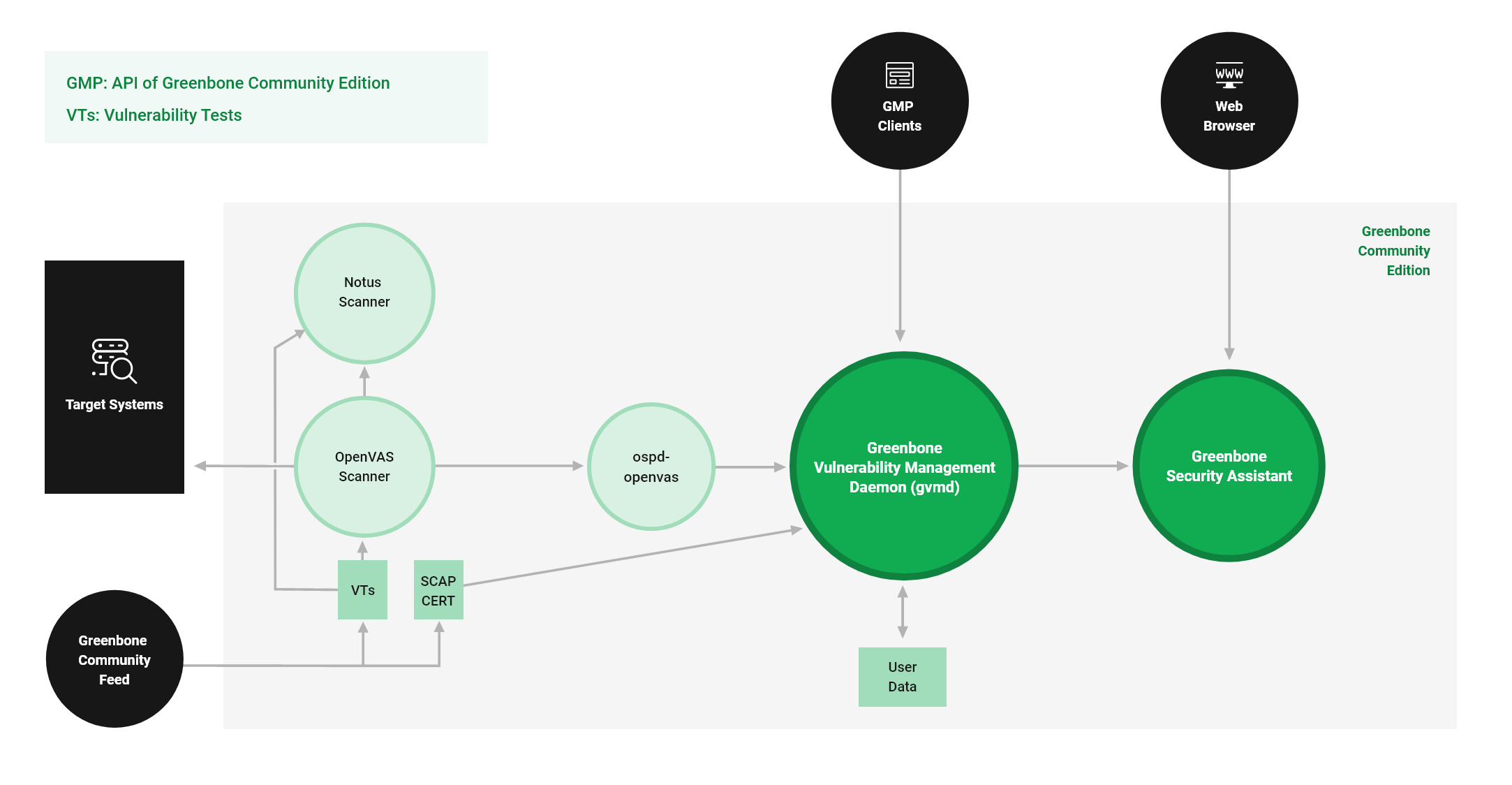
The key points from the diagram below are how our setup establishes a connection with the remote scanner and the a ports on the GM container. You can still use any add-on tools with OpenVAS on port 9390. One of the latest/best upgrades allows you to connect directly to Postgres using your fa database tool.
!G Architecture
Docker Tags
| Tag | Description |
| --------- | ------------------------ |
| latest | Latest stable of both AMD64 and ARM64 |
| dev | Latest de build of AMD64 |
| dev-arm | Latest de build ARM64 |
| old-stable | Previous stable of GVM |
Estimated Hardware Requirements
| Hosts | CPU Cores | Memory | Disk Space |
| :----------------- | :------------ | :-------- | :--------- |
| 512 active IPs | 4@2GHz cores | 8 GB RAM | 100 GB |
| 2,500 active IPs | 6@2GHz cores | 12 GB RAM | 200 GB |
| 10,000 active IPs | 8@3GHz cores | 16 GB RAM | 500 GB |
| 25,000 active IPs | 16@3GHz cores | 32 GB RAM | 1 TB |
| 100,000 active IPs | 32@3GHz cores | 64 GB RAM | 2 TB |
About
Any Issues or Suggestions for the Project can be communicated via the issues. Thanks.
项目信息
开发语言:XSLT
Star 数:16
技术要点
该项目属于安全软件方向的开源资源,代码结构清晰,适合安全研究人员学习参考。项目围绕Greenbone Vulnerability Managment software deployable via docker展开,提供了可运行的实现,对理解相关安全机制、工具原理与攻防技术具有较高的研究价值。
从技术实现角度看,此类项目的核心在于对底层原理的深入理解与工程化落地。开发者在研究过程中可以结合官方文档与社区讨论,梳理项目的初始化流程、核心模块职责与数据流转,逐步掌握其中的技术细节与设计思路。
使用与学习建议
1. 下载源码压缩包,解压到本地环境。
2. 根据项目类型准备对应的运行环境与依赖。
3. 按照 README 中的步骤完成配置与部署。
4. 在隔离的测试环境中运行验证,避免影响生产系统。
免责声明
本资源来源于开源社区,仅供安全研究、技术学习与合法授权范围内的攻防演练使用,请勿用于任何非法或侵害他人权益的用途。使用本项目产生的一切后果由使用者自行承担。
| 资源标题 | GVM-Docker - Greenbone Vulnerability Managment software deploya |
| 所属分类 | 安全软件 |
| 发布作者 | admin |
| 发布时间 | 2026-10-05 22:56:51 |
| 下载权限 | 免费下载 |
| 附件数量 | 2 个下载链接 |
| 浏览次数 | 403 |
| 讨论数量 | 0 |
| 主题状态 | 正常讨论中 |