 防护思路
点击放大
ramibot - RamiBot v3.8.0 is a local-first AI security operat
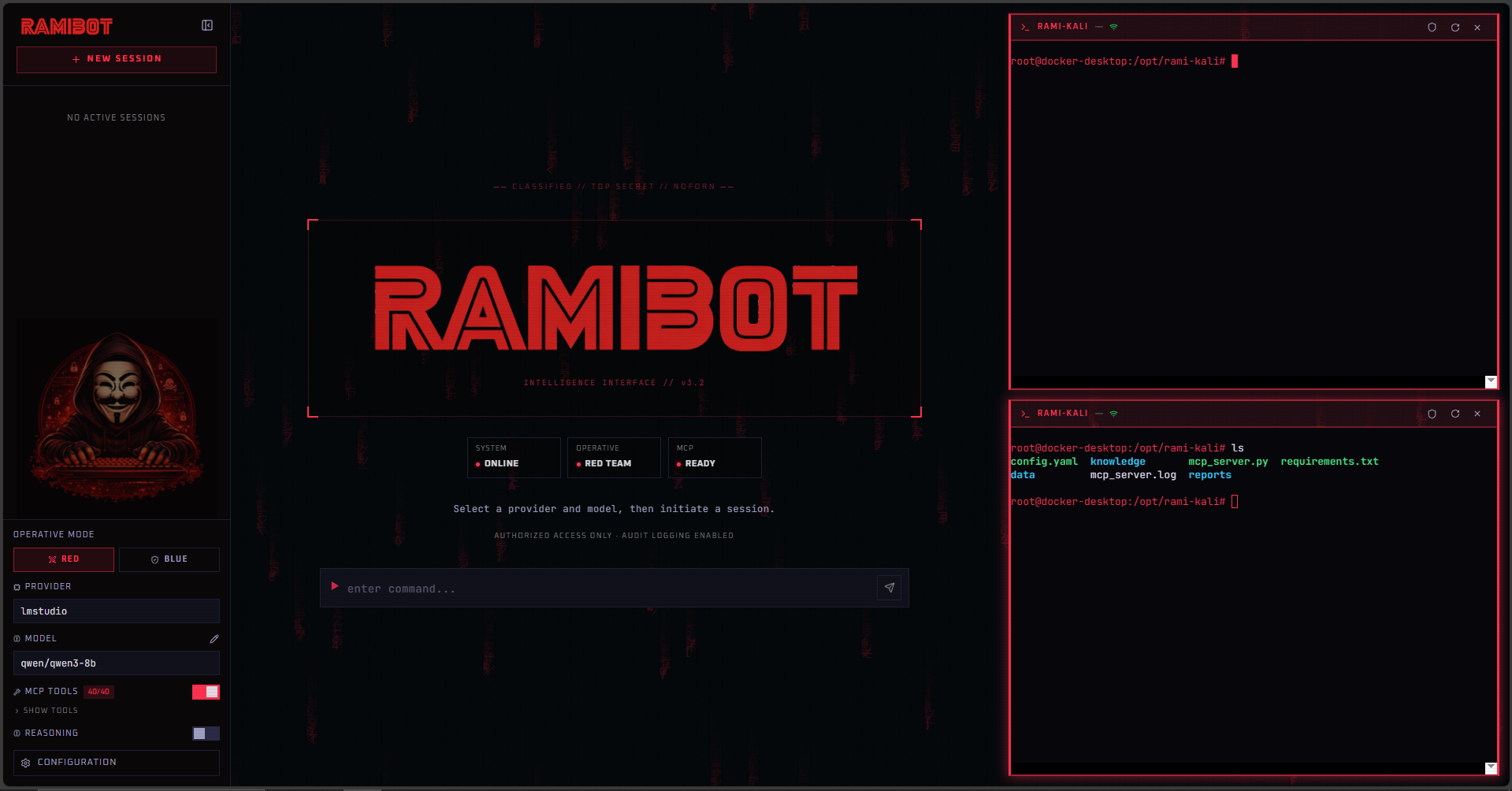
项目说明
<p align="center">
<img src="assets/ramibot.png" width="280" alt="RamiBot Logo" />
</p>
<h2 align="center">RamiBot — AI Security Operations Platform</h2>
<p align="center">
<b>Local-first • Red/Blue Team • MCP-Powered • Docker-Integrated</b>
</p>
<p align="center">
<a href="LICENSE">
<img src=" />
</a>
<img src=" />
<img src=" />
<img src=" />
<img src=" />
<img src=" />
<img src=" />
<img src=" />
</p>
---
<p align="center">
<b>Execute. Analyze. Harden.</b>
</p>
Key Features
RamiBot connects AI reasoning with real cybersecurity tools through a structured operations pipeline.
#### AI & Reasoning
OpenAI, Anthropic, OpenRouter, LM Studio, and Ollama
Structured methodology: Recon → Exploit → Defense → Reporting
Prevents hallucinated CVEs, , or findings
#### Security Tool Integration
Integrates pentesting tools inside controlled en
45+ pentesting tools a to the LLM
#### Infrastructure
Run commands directly inside containerized en
Human appro executing security tools
Generate structured security reports instantly
RamiBot v3.8.0
A local-first AI chat interface for security operations. Supports multiple LLM pro, real-time streaming, MCP tool integration, a dynamic security skill system, Docker terminal access, Tor transparent proxy management, a persistent findings database, one-click PDF report export, a human-in-the-loop Tool Approval Gate that pauses execution before every MCP tool call, a global E Reporting system that prevents the model from fabricating , CVEs, se ratings, or security properties not explicitly present in tool output, a dedicated Burp Suite web assessment skill, a response language selector, Hermes tool chaining that detects and executes <tool_call> XML emitted by Llama/Hermes fine-tuned models, zsh shell with syntax highlighting and autosuggestions in the Docker terminal, proxychains4 proxy routing with ready-made Burp and Tor profiles, Ser C that locks every CVE to its exact detected service via CPE data, a C Lock rule that prevents semantic drift when generating N queries after service discovery, OAuth token support for OpenAI (ChatGPT Plus/Pro subscription CLI) and Anthropic (reserved, pending re-enablement), and one-command install and start scripts (install.sh / install.bat, start.sh / start.bat) that automate the full setup from a fresh system.
<p align="center">
<img src="assets/ramibot_02.png" width="880" style="border-radius:10px;" alt="RamiBot UI" />
</p>
Demo
<table>
<tr>
<td align="center">
<a href="
<img src=" width="600" style="border-radius:10px;" alt="RamiBot in Action — AI-Assisted Pentesting Pipeline (Claude 4.5 + Rami-Kali)" />
</a>
<br/>
<b>AI-Assisted Pentesting Pipeline (Claude 4.5 + Rami-Kali)</b>
</td>
<td align="center">
<a href="
<img src=" width="420" style="border-radius:10px;" alt="RamiBot AI Cybersecurity Demo | Port Scan → C → Security Report" />
</a>
<br/>
<b>Port Scan → C → Security Report (Local AI) Qwen 3.5 4B (Q8_0)</b>
</td>
</tr>
</table>
---
Installation
Requirements
Windows Installer (easiest)
Download RamiBot-Setup-v3.8.0.exe from the Releases page, run it, and follow the wizard.
Before running the installer, make sure Docker Desktop is installed and running. The installer checks for it and will abort if Docker is not found.
The wizard checks for Python 3.9+ and Node.js 18+. If either is missing it downloads and installs them official wizards, then installs all Python and npm dependencies automatically. After the wizard completes, launch RamiBot from the desktop shortcut and add your API key(s) in Settings.
> First launch: on the very first start, RamiBot automatically builds the rami-kali Docker image in the background. This can take a few minutes depending on your connection. Subsequent launches are instant — the image is already built and the container starts in seconds.
🎥 Full Installation Demo (Windows)
<p align="center">
<a href="
<img src=" width="600"style="border-radius:10px;">
</a>
</p>
One-command install (recommended)
The script checks all prerequisites (Python, Node, Docker), installs missing ones automatically where possible, sets up the Python ven npm dependencies, copies settings.example.json → settings.json, builds the rami-kali Docker image, and starts the container — all in one step. Running it again is safe; existing config is ne.
After install, edit backend/settings.json and add your API key(s), then:
start.sh / start.bat launches backend + frontend in the background and opens after 4 seconds. The rami-kali container is left running on shutdown (restart: unless-stopped).
Manual install (alternative)
Backend:
Frontend:
Run
One command (after install):
Two terminals (manual):
Makefile (macOS/Linux):
Open .
---
O
RamiBot is a self-hosted chat application built for security engineers who need a controllable, extensible interface between LLMs and operational tooling.
It does not depend on any cloud chat product. Con are stored locally in SQLite. Provider API keys are configured at runtime. All tool execution happens inside Docker containers.
The core differentiator is the skill pipeline: a prompt engineering system that detects the operational context from user input (reconnaissance, exploitation, defense, analysis, reporting), selects the appropriate skill, and injects structured methodology instructions into the system prompt before each LLM call. Team mode (red or blue) controls which skills are a and how the LLM frames its responses.
Who it is for:
---
Architecture
Data flow for a streaming chat request:
1. Frontend sends POST /api/chat/stream with con ID, provider, model, team mode, MCP flag, and optional require_tool_approval
2. Backend loads con history from SQLite
3. If MCP is enabled: skill pipeline classifies the input, selects a skill, builds a system prompt, and injects it as the first message in history
4. Adapter streams the LLM response as Ser Events (token events)
5. If the LLM emits a tool call and Approval Mode is on: backend yields a tool_appro SSE event and waits (up to 120 s) for the operator's decision via POST /api/chat/approve; auto-denies on timeout
6. If approved (or Approval Mode is off): the MCP client executes the tool, the result is appended to history, and a follow-up generation is triggered
7. Backend saves the final message to SQLite with token usage and latency
8. Frontend renders tokens incrementally and tool traces in real time
---
Skill System
The skill system is invoked on every MCP-enabled chat request. It classifies input, selects a skill, and builds a structured system prompt tailored to the operation phase and team mode.
Components
| Component | File | Responsibility |
|-----------|------|----------------|
| SkillPipeline | skills/pipeline.py | Orchestrates the full build-prompt flow |
| InputClassifier | skills/classifier.py | Regex and substring trigger matching |
| PromptComposer | skills/composer.py | Assembles system prompt from selected skill |
| SkillRegistry | skills/registry.py | Loads skill definitions from JSON |
Skill Definitions
| Skill | Teams | Priority | Risk | Trigger examples |
|-------|-------|----------|------|------------------|
| recon | red, blue | 10 | low | scan, nmap, enumerate, port, subdomain, dns |
| exploit | red only | 20 | high | exploit, payload, shell, rce, xss, sqli, privesc, metasploit |
| defense | blue only | 20 | low | harden, firewall, patch, mitigate, incident, siem, ids |
| analysis | red, blue | 30 | low | analyze, log, traffic, pcap, forensic, anomaly, wireshark |
| reporting | red, blue | 50 | low | report, document, executi, export |
| burp_expert | red, blue | 15 | high | burp, web app, proxy history, repeater, intruder, fuzz, owasp |
Pipeline Logic
1. Trigger classification: Word-boundary regex matches user input against skill trigger lists
2. Phase inference: If no triggers match, the last 3 messages are scanned for phase markers ([RECON], payload, patch, etc.)
3. Dominant skill selection: Highest-priority match wins. reporting is suppressed if exploit or defense is also matched.
4. Fallback: No match defaults to the team default (recon for red, analysis for blue)
5. Context extraction: IPv4, URL, and host:port patterns are extracted from input and recent history and injected as CONTEXT TARGET in the prompt
6. Execution intent: Imperati ("run", "execute", "scan", "exploit") are detected and signaled to the composer
7. Prompt assembly: Team preamble + skill methodology section + E + COMMON_FOOTER
8. Audit log: Every decision is appended as JSON to skill_decisions.log
Team Modes
Red (team_mode: "red")
Blue (team_mode: "blue")
Team mode is selected per con from the sidebar toggle and persisted in localStorage.
---
E Reporting
RamiBot enforces a strict e discipline across all team modes and all skills to prevent LLM hallucinations in security reports and operational output.
How it works
Tool result wrapping (backend/main.py):
Every successful MCP tool result is wrapped in immutable e tags before being injected into the LLM's follow-up context:
Global enforcement (backend/skills/composer.py):
E is injected into every system prompt regardless of team mode or skill. Ten mandatory rules apply to all responses:
| Rule | Enforcement |
|------|-------------|
| Only E Block content is fact | No information from model training cited as operational finding |
| No fabricated / CVEs / CVSS | " not detected." / "Requires manual ." / score omitted |
| No external gap-filling | If nmap shows a service with no , no is assumed |
| No inferred properties | Encryption status, authentication state, EOL status, exploitability, internet exposure, and credential weakness may only be stated if the E Block explicitly contains them |
| Conditional risk language | Forbidden: "is ", "is exploitable", "is exposed". Required: "may be", "appears to", "consistent with" — unless the tool itself uses asserti |
| Se from confirmed findings only | No Critical/High/Medium/Low from port number, service name, or string alone. Default: "Informational" if no is explicitly reported |
| Three-layer output discipline | [RAW OUTPUT] / [PARSED DATA] / [INTERPRETATION] clearly separated |
| No E Block → no fabrication | State "No tool output a" and stop |
| Ser C | Each C carries a SERVICE BINDING line (derived from CPE data). A CVE may only be attached to the detected service whose name matches that binding — ne across unrelated services on the same host |
| C Lock | c queries must be derived from the exact product name and string in the E Block. Forbidden: host IP as query input; semantic pivots to adjacent software (Apache detected → do not query Log4j); famous C from background knowledge without confirmed product presence |
Skill-le:
Each skill definition carries its own E DISCIPLINE: note scoped to its operational context:
recon: report only scan output; no added or CVEsexploit: C are hypotheses ("may be — requires "), not confirmed matchesanalysis: TTP attribution uses conditional language only ("consistent with", "suggests")defense: remediation only for confirmed findings; no hypothetical patchingreporting: E Block excerpts in the E field; se and CVSS only from tool outputReasoning block stripping
When reasoning-capable models (LM Studio / DeepSeek / QwQ) emit <think>...</think> content, it is stripped at two independent points:
1. Storage layer (store.js — stripReasoning()): applied to fullContent before it is committed to the messages array. Stored messages and SQLite records ne reasoning blocks.
2. Export layer (reportPdf.js): three-pass cleaning before HTML rendering — strip reasoning tags, discard content before <!-- REPORT --> marker, strip internal markers. Defense-in-depth for messages stored before the stripping was deployed.
---
LLM Integration
All pro implement a common BaseAdapter interface:
Streaming events emitted by all adapters:
| Event | Payload |
|-------|---------|
| token | {"data": "<text>"} |
| tool_call | {"data": {"id", "name", "arguments"}} |
| usage | {"data": {"prompt_tokens", "completion_tokens", "total_tokens"}} |
| done | {"data": None} |
Supported Pro
OpenAI
api_key → Authorization: Bearer; oauth_token (from ~/.codex/auth.json) → ChatGPT backend with JWT-extracted chatgpt-account-id/v1/models (API key mode); static GPT-5.x Codex list (OAuth mode)reasoning_effort)Anthropic
api_key → x-api-key; oauth_token (format sk-ant-oat01-*) → Authorization: Bearer — currently blocked by Anthropic for third-party use/v1/models (API key); static Claude 3.x–4.x list (OAuth, by token prefix)thinking.budget_tokens)OpenRouter
LM Studio
<think>...</think> blocks; appends /no_think suffix when disabled)Ollama
e / prompt_eContext Handling
tool_calls and the tool result messages are appended before the follow-up generation---
MCP Integration
RamiBot implements the Model Context Protocol client for connecting external tool servers.
Connection Types
Tool Namespacing
All tools are prefixed: {ser}__{tool_name}. This allows multiple MCP servers to coexist without name collisions. The prefix is stripped before the server call.
Persistence
MCP ser are stored in the SQLite mcp_servers table. On startup, all sa are automatically reconnected.
Schema Normalization
Tool schemas are wrapped in {"type": "function", "function": {...}} format for OpenAI-style tool calling compatibility across all adapters.
Disabling Tools
Indi tools can be disabled per session from the Settings modal. Disabled names are sent in ChatRequest.disabled_tools and filtered before injection into the LLM context.
---
Rami-Kali MCP Server
RamiBot ships with a pre-integrated red team toolser on Kali Linux and delivered as a Docker container (rami-kali/).
O
rami-kali MCP ser automatically — no manual configuration requireddocker exec -i rami-kali python3 /opt/rami-kali/mcp_server.pyconfig.yaml inside the container defines allowed target ranges; the ser out-of-scope callsTool Categories
| Category | Example tools |
|----------|---------------|
| Recon | nmap, masscan, whois, theHar, amass, subfinder, dnsx |
| Web | nikto, gobuster, ffuf, nuclei, sqlmap, whatweb, wafw00f |
| C | c (NVD 2.0 API — exact CVE ID, keyword, CPE name, match string, se filter, date ranges; returns CVSS, SERVICE BINDING, CPEs, references) |
| Proxy routing | proxychains4 (Burp profile + Tor profile) |
| Exploit | metasploit-framework, searchsploit, msfvenom |
| Credential | hydra, medusa, hashcat, john, crackmapexec |
| SMB / AD | enum4linux, smbclient, bloodhound, impacket suite |
| Wireless | aircrack-ng, reaver, hcxtools |
| Social eng | gophish, setoolkit |
Knowledge Base
rami-kali/knowledge/ contains 28 structured Markdown files used by the MCP server to prepend tactical context to tool results. Categories include: tool usage guides, MITRE ATT&CK mappings, result interpretation guides, and operational checklists.
Proxy Routing (proxychains4)
The container ships with two ready-made proxychains4 profiles for routing tool traffic through Burp Suite or Tor without modifying any tool configuration:
| Mode | Command | Result |
|------|---------|--------|
| Analysis only | proxychains <tool> | Routes through Burp on Windows host |
| Anonymity only | proxychains -f /etc/proxychains4-tor.conf <tool> | Routes through Tor inside the container |
| Analysis + anonymity | Start Tor in RamiBot → configure Burp SOCKS upstream → proxychains <tool> | tool → Burp → Tor → internet |
Burp → Tor chaining: In Burp Suite, go to Settings → Network → Connections → SOCKS proxy and set 127.0.0.1:9050. This works because the container uses network_mode: host, so 127.0.0.1 resolves to the Windows host running Tor.
Profile paths inside the container:
/etc/proxychains4.conf — routes through Burp (default proxychains command)/etc/proxychains4-tor.conf — routes directly through Tor TransPortThe gobuster_dir MCP tool accepts a proxy parameter to route directory bruteforce traffic through a specific proxy (e.g., for Burp or socks5://127.0.0.1:9050 for Tor).
Quick Start
On next backend start, [MCP] Auto-configured rami-kali server 'rami-kali' will appear in the logs and the server will be listed in Settings > MCP with its full tool set.
---
Docker Terminal
RamiBot includes a browser-based terminal connected to a Docker container via docker exec.
Platform Behavior
pty.openpty() for full PTY allocation. Supports interacti (vim, tmux, etc.), resize events, and full ANSI rendering.docker exec -i). Uses script utility for PTY emulation if a; falls back to plain bash. Shell detection in terminal.py prefers zsh → bash → sh. The rami-kali container runs zsh by default with zsh-syntax-highlighting (valid commands turn green, invalid turn red) and zsh-autosuggestions (press Tab or → to accept suggestions from history).Session Lifecycle
| Step | Endpoint |
|------|----------|
| Create session | POST /api/terminal/start |
| Stream output (SSE, base64) | GET /api/terminal/stream?session_id=X |
| Send input (base64) | POST /api/terminal/input |
| Resize PTY | POST /api/terminal/resize |
| Terminate session | POST /api/terminal/stop |
Up to 2 concurrent terminal panels can be open simultaneously in the UI.
Tor Transparent Proxy
When a Docker container has NET_ADMIN capability:
POST /api/docker/tor {"action": "start"} installs iptables rules to redirect TCP traffic through Tor TransPort (9040) and DNS through port 5353POST /api/docker/tor {"action": "stop"} removes the rules and stops the Tor processGET /api/docker/tor returns { running, transparent_proxy, kill_switch }Requires a Tor installation inside the container. Intended for use in isolated lab en only.
---
🔴 Rami-Kali (Core MCP Tool Server)
Rami-Kali is the official MCP tool server for RamiBot and provides real penetration testing tooling (nmap, metasploit, hydra, etc.).
While RamiBot can run as an AI-only interface, its full operational capability is unlocked when rami-kali is running.
Docker is required for rami-kali.
#### Prerequisite
Docker installed and running.
#### 1. Build the image
The image is based on kalilinux/kali-rolling and installs ~60 penetration testing tools. The first build takes several minutes depending on your connection.
#### 2. Start the container
#### 3.
#### 4. Scope configuration
Allowed target ranges are managed from Settings > Scope in the UI. Changes are written to rami-kali/config.yaml and the container is restarted automatically — no rebuild required.
You can also edit the file directly before starting the container:
The MCP ser any tool call whose target IP falls outside these ranges.
#### Auto-registration
On the next backend startup, RamiBot detects the running container and registers it as an MCP ser:
The ser in Settings > MCP with its full tool list. No manual configuration needed.
#### Container management
---
Configuration
Provider Credentials
API keys and base URLs are configured through the Settings modal in the UI and saved to backend/settings.json.
| Provider | Field | Notes |
|----------|-------|-------|
| OpenAI | api_key | From platform.openai.com |
| OpenAI | oauth_token | ChatGPT Plus/Pro CLI — o api_key if set |
| Anthropic | api_key | From console.anthropic.com |
| Anthropic | oauth_token | Reserved — blocked by Anthropic for third-party use as of Feb 2026 |
| OpenRouter | api_key | From openrouter.ai |
| LM Studio | base_url | Default |
| Ollama | base_url | Default |
OpenAI OAuth token — use the access_token from ~/.codex/auth.json (generated by openai/codex CLI after codex login). When set without an API key, RamiBot routes requests to using your ChatGPT subscription instead of platform billing. The account ID is extracted automatically from the JWT. A models: GPT-5.x Codex series.
Docker
Set the container name in Settings > Docker. The container will be started automatically if it is stopped when a terminal session is requested.
MCP Servers
Add MCP servers from Settings > MCP. Each ser:
Servers are persisted in SQLite and reconnected on backend restart.
> Note: The rami-kali server is pre-configured automatically on first startup if the rami-kali Docker container is running. No manual entry is needed. If the container is not running, the server will appear as disconnected in Settings > MCP and can be reconnected after starting the container with make rami-kali-start.
Scope
Allowed target ranges for the rami-kali MCP server are managed from Settings > Scope.
rami-kali/config.yaml and restart the container in one actionNo Docker rebuild is required. The config file is bind-mounted, so the container picks up the new on restart.
The underlying file (rami-kali/config.yaml) can also be edited directly — the UI reads from it on load.
Skill Log
All skill acti decisions are written to backend/skill_decisions.log in newline-delimited JSON. Each entry contains: timestamp, team mode, input snippet, matched triggers, activated skills, risk level, extracted target, prompt length.
Also accessible from Settings > Skill Log in the UI.
En
.en is provided as a reference template:
Note: runtime credentials are read from backend/settings.json (written by the UI), not from .env. The .env file is a reference template.
---
Usage
Basic Chat
1. Select a provider and model from the top bar
2. Type a message and press Enter
3. Response streams token by token in real time
Red Team Session
1. Set team mode to Red in the sidebar
2. Enable MCP if tool execution is needed
3. Start with a recon prompt:
The pipeline detects the recon context, injects nmap methodology instructions, and routes any nmap__* tool calls to the MCP server.
4. Follow up with exploitation:
The pipeline transitions to the exploit skill. Tool results from each step are fed back into history for chained reasoning.
Blue Team Session
1. Set team mode to Blue
2. Enable MCP
3. Analyze:
The pipeline selects the analysis skill. The LLM returns a structured timeline, IOCs, and mitigations.
4. Remediate:
The pipeline transitions to the defense skill, returning se findings with exact commands.
MCP Tool Execution
When MCP is enabled and the LLM emits a tool call:
1. The tool call is displayed in real time as a collapsible trace in the chat
2. The MCP client executes the tool against the configured server
3. The result is displayed and injected back into the LLM context
4. The LLM generates a follow-up response interpreting the result
Tool Approval Gate
When Approval Mode is enabled (sidebar toggle, only when MCP is active), RamiBot pauses before executing every MCP tool call and waits for explicit operator confirmation.
Enabling it:
1. Enable MCP in the sidebar
2. The Approval Mode toggle appears — activate it
What happens on a tool call:
1. A banner appears inline between the chat and the message input, showing:
- The tool short name (prefix stripped) and up to 4 key arguments (target, host, port, etc.)
- A risk badge colored by level: low (green), medium (amber), high (orange), critical (red) — sourced from rami-kali/config.yaml → risk_levels
- A countdown timer from 120 s; turns red at ≤ 15 s
2. Click APPROVE → tool executes normally; stream continues
3. Click DENY → backend injects [TOOL EXECUTION DENIED BY USER] into the LLM context; LLM reports the denial and suggests alternatives
4. Timeout (120 s with no response) → auto-denied; banner shows "TIMED OUT — AUTO-DENIED"
5. Pressing Stop mid-appro the banner immediately
Risk levels are read from rami-kali/config.yaml → risk_levels. Tools not listed default to medium.
Findings Database
Tool execution results can be saved as structured security findings for later review and export.
Saving a finding:
1. Expand any tool trace in the chat (click the tool name row)
2. Click SAVE AS FINDING at the bottom of the trace
3. The modal pre-fills the title (tool → target), description (cleaned e gate text — no raw JSON), and target from the tool arguments
4. Select se (Info / Low / Medium / High / Critical) and save
Re findings:
Open Settings > Findings to see all sa. From there you can:
Description extraction:
The finding description is auto-populated from the tool's e gate — the structured summary block that RamiBot's MCP ser to every tool result. This gi, human-readable e ( facts, status, finding count) without raw JSON dumps or internal instruction text.
Reporting and PDF Export
The reporting skill generates structured security reports (executi, per-finding analysis, attack path, recommendations, appendix). All claims in the report are constrained by the E Reporting rules — se, CVEs, and C only appear when explicitly present in tool output.
After generating a report, the LLM offers PDF export:
> *¿Quieres exportar este reporte como PDF? Escribe pdf para descargarlo.*
Type pdf (or sí, dale, yes, etc.) — the frontend intercepts the message without making an LLM call, opens a print-ready window, and triggers the browser print dialog automatically.
The PDF export runs three cleaning passes before rendering:
1. Strip <think>...</think> / <thinking>...</thinking> blocks (internal model reasoning — ne in deli)
2. If <!-- REPORT --> marker is present, discard all content before it (removes any preamble or stray reasoning)
3. Strip the internal <!-- REPORT --> marker and PDF offer line
The PDF includes:
[CRITICAL], [HIGH], etc.)No additional npm packages are required — PDF generation uses the browser's nati capability via window.print().
Docker Terminal
1. Configure a container name in Settings > Docker
2. Click the terminal icon in the chat header to open a terminal panel
3. A second panel can be opened (max 2 concurrent)
4. The terminal runs inside the configured container via docker exec
---
API Reference
Con
| Method | Path | Description |
|--------|------|-------------|
| GET | /api/con | List all con |
| POST | /api/con | Create con |
| GET | /api/con/{id} | Get con with messages |
| DELETE | /api/con/{id} | Delete con |
| GET | /api/con/{id}/export?format=json\|markdown | Export |
Chat
| Method | Path | Description |
|--------|------|-------------|
| POST | /api/chat | Non-streaming chat |
| POST | /api/chat/stream | SSE streaming chat with MCP tool execution |
| POST | /api/chat/approve | Resolve a pending tool approval (appro, approved: bool) |
Pro
| Method | Path | Description |
|--------|------|-------------|
| GET | /api/pro | List pro and capabilities |
| GET | /api/models?provider=X | List models for provider |
MCP
| Method | Path | Description |
|--------|------|-------------|
| GET | /api/mcp/servers | List configured servers |
| POST | /api/mcp/servers | Add server |
| DELETE | /api/mcp/servers/{name} | Remo |
| GET | /api/mcp/all-tools | All tools across all servers |
| GET | /api/mcp/tools?server=X | Tools from specific server |
| POST | /api/mcp/call | Execute tool directly |
Terminal
| Method | Path | Description |
|--------|------|-------------|
| POST | /api/terminal/start | Create terminal session |
| GET | /api/terminal/stream?session_id=X | SSE output stream |
| POST | /api/terminal/input | Send input (base64) |
| POST | /api/terminal/resize | Resize PTY |
| POST | /api/terminal/stop | Terminate session |
Scope
| Method | Path | Description |
|--------|------|-------------|
| GET | /api/scope | Read allowed_scope and require_scope_check from config.yaml |
| PUT | /api/scope | Write scope config and restart the rami-kali container |
PUT /api/scope body:
Findings
| Method | Path | Description |
|--------|------|-------------|
| POST | /api/findings | Save a new finding |
| GET | /api/findings?se=X&con=Y&limit=N | List findings (all filters optional) |
| DELETE | /api/findings/{id} | Delete a finding |
| GET | /api/findings/export?format=json\|csv&se=X&con=Y | Export findings as file download |
POST /api/findings body:
Settings
| Method | Path | Description |
|--------|------|-------------|
| GET | /api/health | Health check |
| POST | /api/settings | Sa |
SSE Event Format (/api/chat/stream)
---
Security Notice
RamiBot is designed for use in authorized, controlled en.
backend/settings.json. Protect this file accordingly.---
---
Stack
| Layer | Technology |
|-------|------------|
| Backend framework | FastAPI + U |
| Async database | aiosqlite (SQLite 3, WAL mode) |
| HTTP client | httpx |
| Ser Events | sse-starlette |
| Frontend framework | React 19 |
| Bundler | Vite 7 |
| State management | Zustand 5 |
| Terminal emulator | xterm.js (/xterm 6) |
| Markdown rendering | react-markdown + remark-gfm + rehype-highlight |
| Icons | lucide-react |
---
Running Tests
💬 Community & Discussions
RamiBot uses GitHub Discussions as the main place for community interaction.
Join the discussions to share ideas, experiments, and workflows.
Categories
📣 Announcements
Project updates, releases, and important news.
🧠 Local LLMs
Running RamiBot with local models, benchmarks, GPU performance, and configuration tips.
🧪 Labs & Experiments
Experiments with workflows, tool chaining, and AI-assisted security operations.
🌍 Real-World Cases
Examples of practical security analysis workflows using RamiBot.
💡 Ideas
Feature proposals and suggestions for improving the project.
⁉️ Q&A
Questions about installation, configuration, and usage.
🛠 Troubleshooting
Help with errors, setup problems, Docker issues, and debugging.
👉 Join the discussions here:
项目信息
开发语言:Python
Star 数:28
技术要点
该项目属于防护思路方向的开源资源,代码结构清晰,适合安全研究人员学习参考。项目围绕RamiBot v3.8.0 is a local-first AI security operations platform integrating multi-LLM support, a dynamic red/blue team skill pipeline, MCP tool orchestration, Docker terminal access, Tor proxy management, and an auto-integrated Kali-based tool server (rami-kali) for controlled, extensible offensive and defensive workflows展开,提供了可运行的实现,对理解相关安全机制、工具原理与攻防技术具有较高的研究价值。
从技术实现角度看,此类项目的核心在于对底层原理的深入理解与工程化落地。开发者在研究过程中可以结合官方文档与社区讨论,梳理项目的初始化流程、核心模块职责与数据流转,逐步掌握其中的技术细节与设计思路。
使用与学习建议
1. 下载源码压缩包,解压到本地环境。
2. 根据项目类型准备对应的运行环境与依赖。
3. 按照 README 中的步骤完成配置与部署。
4. 在隔离的测试环境中运行验证,避免影响生产系统。
免责声明
本资源来源于开源社区,仅供安全研究、技术学习与合法授权范围内的攻防演练使用,请勿用于任何非法或侵害他人权益的用途。使用本项目产生的一切后果由使用者自行承担。
| 资源标题 | ramibot - RamiBot v3.8.0 is a local-first AI security operat |
| 所属分类 | 防护思路 |
| 发布作者 | admin |
| 发布时间 | 2026-10-06 00:09:55 |
| 下载权限 | 免费下载 |
| 附件数量 | 2 个下载链接 |
| 浏览次数 | 182 |
| 讨论数量 | 0 |
| 主题状态 | 正常讨论中 |