 红蓝攻防
点击放大
pwneye - Your ONVIF and RTSP camera companion for discoveri
项目说明
<p align="center">
<img src="assets/logo.png" alt="pwneye logo">
</p>
<p align="center">
<img src=" alt=" 1.3.2">
<img src=" alt="codename panopticon">
<img src=" alt="Python 3.10+">
<img src=" alt="macOS and Linux">
<a href="LICENSE.md"><img src=" alt="GNU GPL v3.0"></a>
</p>
pwneye is a focused and portable offensi tool for working with IP cameras that expose ONVIF and RTSP services, aiming to gi researchers and hackers an easy way to handle discovery, authentication testing, metadata collection, stream , recording, and follow-up actions from a single CLI workflow.
Some of the capabilities currently supported include:
ffplay, recording via ffmpeg, and snapshot capture~/.pwneyeDemo
Table of Contents
- pipx
- Python
- External Dependencies
- What ON You
- Enumerating the Local Network
- Bruteforcing Credentials
- Rebooting a Camera
- Resetting a Camera
- Moving the Camera
- Defacing a Stream
- Undefacing a Stream
- Getting a shell
- What RTSP Gives You
- Identifying the
- RTSP Bruteforce
- Multi-Channel Streams
- Streaming, Recording, and Snapshots
Installation and Updates
pipx
Install pwneye as a system-wide CLI command from GitHub:
Uninstall it:
Upgrade it later from the same GitHub source:
Python
Upgrade it later from the same GitHub source:
External Dependencies
The following tools are expected in PATH depending on the mode you use:
ffplayffprobeffmpeg for recording| Platform | Install command |
| --- | --- |
| macOS (Homebrew) | brew install ffmpeg |
| Ubuntu / Debian | sudo apt update && sudo apt install ffmpeg |
| Fedora | sudo dnf install ffmpeg ffmpeg-free |
| Arch Linux | sudo pacman -S ffmpeg |
| openSUSE | sudo zypper install ffmpeg |
Getting Started
Use these as the fastest entry points into the tool. The goal here is not to document every flag, but to show the most useful ways to start working with a camera depending on what you already know.
Start from the default full workflow when you have a single target and want pwneye to do the protocol selection work for you:
Start from ON when you are on the same local network and want to identify devices, , and stream clues before touching RTSP:
Start directly from RTSP when ONVIF is irrelevant, una, or you already know what you want to test:
Start from known or suspected credentials when you want to reduce noise and access quickly:
Start from a known path or a path template when you already have a stream clue and want tight control over RTSP requests:
Start from e collection once a working stream is found:
Useful flags to keep in mind:
-- : reduce RTSP requests when the device family is already known-cn, --connection-string PATH: try a known RTSP path or a file containing candidate paths--multi-channel: prefer channel-based RTSP paths when you suspect a D target--threads N: control concurrency for ONVIF and RTSP bruteforce--skip-onvif / --skip-rtsp: focus on one protocol only--no-cache: do not read from or write to cache--fresh: ignore cache reads but still write new findingsONVIF
ONVIF is the management and control side of the camera world. In practice, it is useful for discovery, authentication, metadata extraction, media profile enumeration, stream URI retrieval, and device actions such as rebooting.
In pwneye, ONVIF is usually the protocol that gives the richest post-auth context, the cleanest path to understanding what a camera exposes, and, when the authenticated account has enough pri, access to real administrati on the device.
What ON You
When a camera exposes ONVIF, pwneye can use it to:
--reboot--reset--shell--deface--undefaceEnumerating the Local Network
Use WS-Discovery to identify ON devices on the local network:
The discovery loop keeps probing every few seconds, prints only newly discovered devices, and can be stopped with CTRL-C.
You can also force discovery through a specific network interface:
When no interface is specified, pwneye automatically chooses the default outbound interface and tells you which target subnet it is using for WS-Discovery.
Bruteforcing Credentials
Run ON bruteforce with a fixed username and a password file:
Useful options:
--skip-onvif: skip ON and enumeration-oP, --on PORT: test a specific ONVIF port-ou, --on USER: ON or file with one username per line-op, --on PASS: ON or file with one password per lineIf -ou and -op are not specified, pwneye automatically falls back to its built-in common ON and passwords.
pwneye caches successful ON per target under ~/.pwneye/cache and reuses them on future runs unless you use --fresh or --no-cache.
Rebooting a Camera
If ON succeeds, you can request a reboot directly:
When --reboot is used, RTSP probing is skipped.
Resetting a Camera
If ON succeeds, you can also request a factory reset directly:
Warning: this operation may be irre and can wipe the current device configuration, credentials, and network settings. Use --reset only when you fully understand the impact and are explicitly authorized to perform it.
As with --reboot, when --reset is used, RTSP probing is skipped.
Moving the Camera
If the target exposes PTZ controls through ONVIF, pwneye can move the camera both from the terminal and from the dedicated li.
From the CLI, use --move with direction,duration. The flag can be repeated, and the requested moves are executed in sequence while RTSP probing is skipped:
Accepted directions are:
left or lright or rup or udown or dExample:
Inside the dedicated , if PTZ is supported, the focused view also lets you move the camera interactively with W, A, S, and D. This is useful when you already have a working stream and want direct feedback while adjusting the device.
Defacing a Stream
If ON succeeds, pwneye can also try to deface the stream directly:
What --deface does, in short:
pwneye performs a full defacepwneye warns the user and offers a partial deface insteadpwneye saves a restore profile for the target under ~/.pwneye/cacheThe implementation is intentionally conser and :
pwneye lowers supported imaging controls such as brightness, contrast, and saturation instead of relying on trickspwneye reuses existing writable ONVIF text layers rather than creating or deleting new OSD entriesExample:
Sample result:
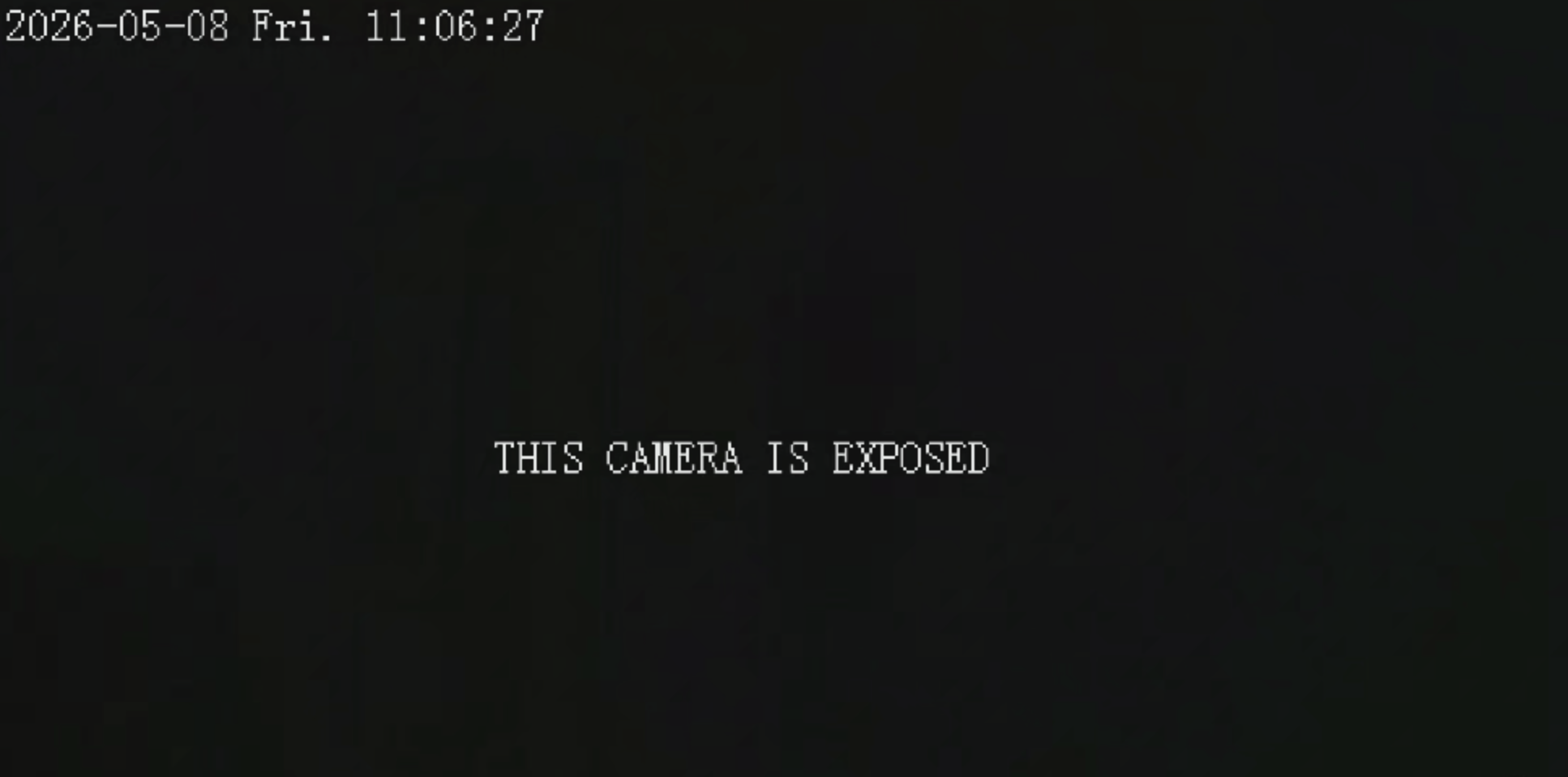
!Deface placeholder
Undefacing a Stream
If a previous --deface run saved a restore profile for the target, pwneye can use it to restore the original ON:
What --undeface does, in short:
--deface, the final result may be full or partial depending on what the target allows through ONVIFThe restore profile is not deleted after a successful --undeface. It stays in cache until a future --deface o it with a newer profile.
Example:
Getting a shell
If ON succeeds, pwneye can also drop you into an interacti shell directly.
This is useful when you want to inspect services, call methods manually, explore capabilities, or test target-specific operations without leaving the current workflow.
Example:
RTSP
RTSP is the streaming side of the camera world. It is the protocol that usually gives you the li path, but it is also the most fragmented one: use different paths, channel con, authentication quirks, and banner formats.
In pwneye, RTSP handling is built around port discovery, banner grabbing, path selection, bruteforce orchestration, stream , preview, and recording.
What RTSP Gives You
RTSP is the part of the workflow that confirms whether you can really access a stream. In pwneye, that means:
Identifying the
pwneye will try to identify the RTSP automatically through RTSP banner grabbing before falling back to broader path enumeration.
If automatic banner-based identification fails and you already know the from prior analysis, you can pass it directly to reduce the number of requests significantly:
You can also fetch only the RTSP banner and exit:
Useful options:
--skip-rtsp: skip RTSP detection and bruteforce-P, --rtsp-port PORT: test a specific RTSP port-- : force a from the RTSP database--list-: print the supported by the RTSP knowledge base and exit--protocol tcp|udp: choose RTSP transport, default is tcp--timeout SECONDS: RTSP timeout, default is 10RTSP Bruteforce
Bruteforce RTSP with fixed credentials:
Rotate only usernames with a fixed password:
Try a single user-provided RTSP connection string:
Load candidate connection strings from file:
Combine a manual path with fixed credentials:
Prefer multi-channel paths when the target is likely a DVR/NVR:
Useful options:
-u, --username USER: RTSP username or file with one username per line-p, --password PASS: RTSP password or file with one password per line-cn, --connection-string PATH: RTSP connection string or file with one connection string per line--multi-channel: prefer RTSP multi-channel connection strings when a--threads N: number of concurrent threads used by the bruteforce engineIf -u and -p are not specified, pwneye automatically falls back to its built-in common RTSP usernames and passwords.
pwneye caches successful RTSP credentials and stream metadata per target under ~/.pwneye/cache.
Cache behavior:
--fresh: ignore cached results but still update cache with new findings--no-cache: disable both cache reads and cache writesMulti-Channel Streams
Some cameras, DVRs, and N multiple logical RTSP channels instead of a single static path. Typical examples include templates such as:
pwneye can detect this automatically while probing RTSP, including through RTSP knowledge, but you can also steer the process explicitly:
--multi-channel tells pwneye to prefer channel-based RTSP paths from the knowledge base--connection-string lets you provide your own channel template, including placeholders such as {channel}pwneye can open either a single feed or a dedicated multi-channel in one windowExamples:
Sample output:
If you choose Open all discovered channels, pwneye launches a dedicated multi-channel client that keeps all discovered streams inside a single window. Each feed is shown in the mosaic as a li, and clicking a tile promotes that channel to a larger focused view with a simple Back action to return to the grid.
<p align="center">
<img src="assets/d.png" alt="pwneye dedicated multi-channel client demo">
</p>
By default, live RTSP preview uses the dedicated pwneye client. If you prefer the classic system-player workflow instead, you can add --legacy to open the stream with ffplay.
When the dedicated client is open, you can also trigger Snapshot and Record directly from the focused view without leaving the GUI. This is useful when you want to inspect a feed first and only then decide to save a still image or start recording e.
Streaming, Recording, and Snapshots
Open a stream with li:
Record a RTSP stream with preview:
Capture a snapshot instead of a full recording:
Record without opening the preview window:
Recording behavior:
--record [OUTPUT.mp4]: record the RTSP stream; if omitted, a timestamped file is created under ~/.pwneye/recordings--snapshot [OUTPUT.jpg]: save a still frame from the RTSP stream; if omitted, a timestamped file is created under ~/.pwneye/snapshots--no-video: skip li and decodingSnapshot and Record actions directly in the focused view~/.pwneye/recordings/<target>/~/.pwneye/snapshots/<target>/Tips & Tricks
If pwneye were a video game, these are probably the tips you would see on the loading screen:
--discover works on the local network, use it first. information, device metadata, and cached findings can make later RTSP work much quieter and more reliable.--skip-rtsp instead of hammering RTSP directly and making the stream unstable. When pwneye finds valid ON, it will try to reuse them on RTSP automatically.-- explicitly. It reduces requests and can help keep fragile targets stable.--connection-string instead of broad RTSP enumeration. It gives you tighter control over the request set and makes failures easier to interpret.--multi-channel or a manual channel template before assuming it only exposes a single stream.--reboot.Acknowledgements
Special thanks to for on, the ON used by pwneye.
It made the ONVIF side of this project dramatically easier and more reliable.
Thanks to Darix Deros for helping during testing and for sharing several useful suggestions that impro of the tool, including the ON workflow.
Safety
Use pwneye only against assets you own or are explicitly authorized to assess.
This tool can enumerate services, test authentication, open streams, record video, interact with ON features, and, with sufficient pri, reboot, reset, deface, or otherwise alter the behavior of a target device.
Even when your goal is only e collection, repeated RTSP probing can make fragile cameras unstable, and ON can ha operational impact.
License
This project is distributed under the GNU GPL3 License.
See LICENSE.md.
项目信息
开发语言:Python
Star 数:341
技术要点
该项目属于红蓝攻防方向的开源资源,代码结构清晰,适合安全研究人员学习参考。项目围绕Your ONVIF and RTSP camera companion for discovering and hacking real-world security cameras 🎥展开,提供了可运行的实现,对理解相关安全机制、工具原理与攻防技术具有较高的研究价值。
从技术实现角度看,此类项目的核心在于对底层原理的深入理解与工程化落地。开发者在研究过程中可以结合官方文档与社区讨论,梳理项目的初始化流程、核心模块职责与数据流转,逐步掌握其中的技术细节与设计思路。
使用与学习建议
1. 下载源码压缩包,解压到本地环境。
2. 根据项目类型准备对应的运行环境与依赖。
3. 按照 README 中的步骤完成配置与部署。
4. 在隔离的测试环境中运行验证,避免影响生产系统。
免责声明
本资源来源于开源社区,仅供安全研究、技术学习与合法授权范围内的攻防演练使用,请勿用于任何非法或侵害他人权益的用途。使用本项目产生的一切后果由使用者自行承担。
| 资源标题 | pwneye - Your ONVIF and RTSP camera companion for discoveri |
| 所属分类 | 红蓝攻防 |
| 发布作者 | admin |
| 发布时间 | 2026-10-06 00:43:15 |
| 下载权限 | 免费下载 |
| 附件数量 | 2 个下载链接 |
| 浏览次数 | 366 |
| 讨论数量 | 0 |
| 主题状态 | 正常讨论中 |